Showing posts with label cartridge content. Show all posts

Sunday, August 5, 2012

Overview of the Cricut Cartridge "My Community"

Today I will be talking about at the Cricut cartridge "My Community" and I will offer a project challenge.  If you have never looked at this cartridge you are in for a treat!  In my opinion, this is one of the most versatile and applicable cartridges Cricut offers.  I can't wait to show you what you get to play with.  In this post you will get:
  • a sample view of the cartridge images
  • a list of the various themes this cartridge can work with
  • a project challenge
  • a look at a few handbook pages with some explanation of the possibilities
  • a link to the PDF of the handbook
  • photos of image layers assembled
  • a spreadsheet with a list of the images, words and phrases, cards and projects with their pages numbers including a link to download the PDF version.

This is the sample sheet Provocraft prints on the back of the box.  Usually their cartridge sample sheets do not show all of the images on the cartridge but on "My Community" they do.  There are 98 layered images with a shadow and a blackout plus a puzzle piece, a tile and a notebook page.  I love the range of topics. You could use this cartridge for so many different themes:
  • school
  • heritage
  • baby
  • Christmas
  • Games
  • projects with kids
  • nursery rhymes
  • family
  • animals / farm
  • home
  • travel /road trip
  • Easter
  • Thanksgiving
  • people
  • nature
  • community
  • railroad and trains
  • vehicles
  • mail
  • firemen
  • policemen
  • shopping
  • ice cream/ candy
  • going out to eat
  • library
PROJECT CHALLENGE - I was returning library books the other day and as I drove past our local park, I saw our mail carrier eating her lunch in the shade and thought; "I need a scrapbook of our neighborhood!"  It would be so fabulous to show my grandchildren where their parents grew up and perhaps, how we lived "in the olden days."   So over the next few days I am going to head out on foot to take photos of the people and places that are a part of our lives. Then I am going to scrapbook these photos using the "My Community" cartridge.  I invite you to join me, and, if you'd like, post a link to photos of your project.  Doesn't that sound like fun! You could do this in your Smash Book, as a mini album, as one or several layouts or in your journal.  I'd love to see what you come up with!

On the page above, which has a matching key on the cartridge overlay, your two primary images are of a police station facade and a policeman (key with shift).  Add the "Layers" feature key and Cricut cuts 2 light posts and a piece of building trim as another layer for the police station. With shift, Cricut cuts the policeman uniform.  Add the "Shadow" or "Blackout" feature key to cut layers to be placed under the primary image.  The "Puzzle," the "Tile" and the "Notebook" feature keys produce the primary image within a puzzle piece, a tile and a notebook page.

To see and download the entire handbook, click here.
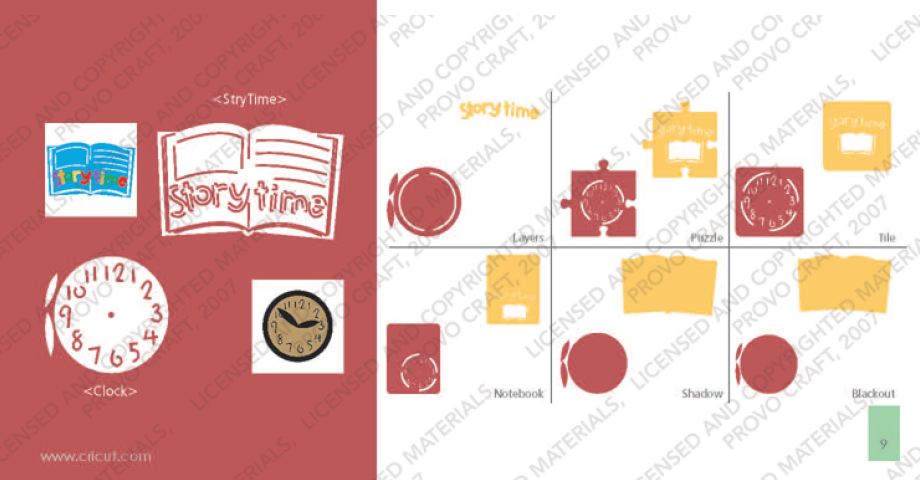
Sometimes cutting and layering an image isn't as easy as it looks.  Since I want to offer a truly comprehensive overview of the cartridges, I thought I would cut the two main images from page 9 to see how all the layers work together.
The clock above was assembled with the primary image and the Layer. The clock hands come from the Layer - they seem to be a little large for the clock but could be trimmed and attached with a brad.
The clock face below is made with the primary image, the Layer and the Shadow.  For the hands, I used the primary and the Layer image hands stacked. 

The image below is made with the primary image with the shift key (the white), the Layer with shift (the letters that spell story time), the Shadow (light brown) and the Blackout (dark brown).

 
In order to get the multi-color spelling, I had to cut the Layer 5 times, 1 in each color.


There is not a way to isolate the letters so that you can get multiple colors with one cut unless you use the hide contour feature on Design Studio, Gypsy or Cricut Craft Room.

To do this, you would press "Layer" 5 times and then use the hide contour feature to hide all but 2 of the letters on each of the 5 copies.  Then you would place scraps of paper for each colors on your sticky mat to match the location on your virtual mat.  By doing this, you are not left with a pile of extra letters like shown above.

I cut the story book image at 2.5 inches.  Because the die cut is rather small, the light brown shadow under the primary image does not show through very well to create contrast that appears like lines of text.  With inking or Copic markers you can create this look manually.

Last but not least, here is a list of all of the images and phrases on this cartridge with their page numbers.  If you find any errors in the spreadsheet, please let me know so I can correct it. If you would like to share this information on your blog, instead of copy and pasting this info, please paste a link to my site. The spreadsheet below is saved as a JPEG but you can download a PDF version of My Community here:


Monday, July 16, 2012

Comprehensive overview of the Cricut Lite Cartridge "Chore Chart"

Today I am posting a comprehensive overview of the Cricut Lite Cartridge "Chore Chart." This cartridge does not have a handbook like the full cartridges.  Instead you receive a laminated tri-fold to show you the layers and various cuts. In this post, we will be looking at:

  • the "Sample" that Provocraft prints on the back of the cartridge box
  • a closer look at the pages in the tri-fold "handbook" with detailed explanations
  • and a spreadsheet that includes each phrase, word and image with the corresponding page number
When this cartridge first came out I headed straight to the Walmart web site and purchased it in their cricut lite cartridges value bundle with Boys will be Boys.  I was certain that this cartridge would finally bring order to my household!  The children would know what their jobs were and when to do them and I would never have to nag again.  Hey, a girl has to dream.
This is the sample sheet they put on the back of the cartridge box.  They kind of "had me at hello" because I am such a sucker for this kind of playful style, I love the color palette and because that little baby on the right in the 2nd row from the bottom just had to be in my arsenal.
This is the front and back of the tri-fold.  It shows all of the layers for each key on the overlay. I not a big fan of the tri-fold.  I like to get a good look at the images so the bigger, the better.  I have a harder time imagining the possibilities of the images when the layers are not spread out more. Below is the instruction guide they provide on how to cut the layers:
Too me, this is not very helpful. I'm not being sarcastic - I bet there are a lot of crafters who get the handle on cartridges quickly.  I am just not one of them. I really wish there were better instructions with all of the cartridges.  There are lots of videos on Youtube but I like step by step direction.  I did a lot of searching on the web and solicited help from the Cricut message board and that was helpful.  My hope is that my blog will become a resource cricuteers can turn to.  But I digress...

Below is a look at the chore chart skeleton.  You will need to select 4 different colors for the 4 layers used to make this image. I tried to use my own color scheme and was very disappointed with the end result.  Selecting colors that make the title legible  is not as easy as it seems.  Plus, once you have changed the color scheme of the chart, you will have to think carefully about the color scheme for all the other elements.
I am sorry this image isn’t larger because it will be the largest piece you will cut with the cartridge.  I used my 12 x 24 inch cutting mat and paper and I still didn’t feel like the chart was large enough.  I recommend making the actual chart on a piece of display board and then using all the other cuts to make it come alive.  If you do decide to make the chart yourself, you will need to tinker with the sizes of the other elements so that they fit the scale of your chart.  Even when I used the chart on the cartridge, I still had to fool around with the element sizes.  Make sure you have lots of scrap paper to work with.

Below is a look at the days of the week to use on your chart:


Below is a look at one of the chore squares you can assign to your "chorees."  This one is for getting the car serviced - in our house, it would be for Dad.  You could also use it for washing the car or driving carpool.


This next graphic is the overlay which indicates which button to use for each image.  The overlay's are placed on the Personal Cutter and the Expression but if you have a digital interface like the on Expression 2, Gypsy or the Imagine, you can keep the overlay in the box. The same is true if you use Design Studio and Cricut Craft Room since they have virtual overlays.

And finally; the list of all of the images and phrases on this cartridge with their page numbers.  If you find any errors in the spreadsheet, please let me know so I can correct them. If you would like to share this information on your blog, instead of copy and pasting this info, please paste a link to my site. The spreadsheet below is saved as a JPEG but you can download a PDF version of Chore Chart here:


One last thing... I'm hoping that some of you reading have had some experience with this cartridge because there is something that bothers me about the arrangement of the chore chart if you use the layout the provide.  Where do you put the "choree" names?  The front of the box gives a loose example:
I'd love to hear how you or someone you know designed their chart so that it included the names of family members or roommates.  Perhaps each person in the family has their own chore chart? Maybe you create a column to the left of the chart where you put the chores for one person and then you put stars under the day's of the week they were completed?  Please share what you know so that this post is complete!


Saturday, July 7, 2012

Cricut Imagine Cartridge, BEST FRIENDS

Best friends is such a treasure of a cartridge.  There are so many unusual images and the paper patterns ready for print are fabulous.  Take a looksie...

What is so cool about the patterns above is that you don't have to use them to make 12 x 12 sheets of paper.  You can also use them as a fill for fonts or fill for the preloaded images like a heart, scallop circle or a frame.  I like to use them as photo mats on top of a neutral 12 x12 background paper.
The images included are so fun.  Here is the sample sheet the provide on the back of the package:
Each of these can be print and cut as the complete image OR... can be print and cut as layers.  See Below:


To top all of these awesome images off, The "Best Friends" cartridge has 4 bonus projects.  I am so happy I switched from my expression to the Imagine, because these cartridges only work with the Imagine machine and I love the whimsy style they offer.

 Here is a list of all of the images and phrases on this cartridge with their page numbers.  If you find any errors in the spreadsheet, please let me know so I can correct them. If you would like to share this information on your blog, instead of copy and pasting this info, please paste a link to my site. The spreadsheet below is saved as a JPEG but you can download a PDF version of Best Friends here:


Happy Saturday!


Friday, July 6, 2012

Cricut cartridge list of content - Birthday Bash

It is time to look at another Cricut Cartridge!  This is a comprehensive overview of the Cricut Cartridge, Birthday Bash. I have included a little about the sample that you find on the back of the cartridge, a bit on the handbook pages, and, at the bottom of the entry, a spreadsheet that lists all of the images and words/phrases on Birthday Bash-  with their page numbers. 
 First lets take a look at the sample sheet which is designed to give you a general idea of the content on the cartridge.  You can find this on the back of the box. This sample does not show ALL of the content - it just shows you a bunch of the adorable images included.  In my opinion, this is a powerhouse cartridge because it also includes a GREAT FONT and it has fabulous shaped cards that can be used as invitations, birthdays, thank you notes or any other sentiment.  To see all the images, phrases, fonts, words, projects, cards and/ or paper designs (depending on the type of cartridge) you will need to review the handbook which we will talk about shortly.
I just love these animals - they are so original plus you can leave out certain layers so they are appropriate for subjects other than birthdays.  

I *love* the font that comes on this cartridge!  It includes upper and lower case, both with shadows which create really nice contrast and dimension. Below is a little sample:
 
 Below is a summary of a handbook page from the Birthday Bash cartridge handbook. As you can see, there are many more goodies on this cartridge than just the birthday images and they can be used in more than birthday oriented projects.

Take a quick look at the notes I have written on the edges of the handbook page.  By understanding what the function keys do, you will get a lot more from your cartridge and save a lot of time and paper trying to figure it out on your own!
I have used the bird on the flag banner image several times but have cut the bird off after it is cut.  You could also use the bird by itself for another look. This images has a layer 1 and layer 2, (both with a 2nd feature when you use it with the shift key) which gives you the opportunity to create something with a lot of color.
There is also a phrase option znd an additional layer with the use of shift.  The layer + shift option can be used several times to add additional bits of color.  For example; You may cut the base image in white.  Then cut the phrase + shift option 3 times: in orange, yellow and blue.  You could cover the beak and legs with the orange pieces; use the yellow on the tail; and the blue for the letters in "a little bird told me...".  This phrase could be used on the front of a card or as a page title or anything else you can dream up.

The card option is great - I use it all the time.  You are in control of the size so you can cut small for enclosure cards or big for extra fun cards.

Each page in the handbook will offer the same kind of information which can be a little confusing when you want to do several things. I use the spreadsheet below to help cut back on the manual searching.  What I have done is borrowed from the database at cricutcheatsheet to get a list of all of the images and phrases/ words on the Birthday Bash cartridge.  Then I went through the handbook, page by page, box by box and added the page numbers which really helps reduce time flipping through the handbook.  For more information on how it is helpful, refer to the Baby Steps entry which offers an example.

The spreadsheet below is saved as a JPEG but you can download a PDF version of the Birthday Bash here:


 I will post the spreadsheet for the Birthday Bash font and the card designs tomorrow. If you find any errors in the spreadsheet, please let me know so I can correct them. If you would like to share this information on your blog, instead of copy and pasting this info, please paste a link to my site.


Wednesday, July 4, 2012

Cricut cartridge list of content - Baby Steps

Happy 4th of July!  Today we are looking at a must have cartridge if you scrapbook babies. This post is a comprehensive overview of the Cricut Cartridge, Baby Steps. I used to struggle with scapbooking my kids baby pictures because everything out there is generally in a pastel palette.  All you have to do is spend 5 minutes with my kids and you'd know that Eva (our Diva) is hot pink all the way and Aidan is much more of a primary color kid.  With the Baby Steps cartridge, I was able to make adorable and relevant titles in whatever color I wanted.  Another HUGE bonus is that this cartridge has a FONT!
As with my previous cartridge posts, I will discuss a little about the sample that you find on the back of the cartridge, a bit on the handbook pages, and, at the bottom of the entry, I'll post a jpeg of and link to a spreadsheet that lists all of the images and words/phrases on Baby Steps-  with their page numbers!
   
First lets take a look at the "sample" sheet (above) which is designed to give you a general idea of the content on the cartridge.  You can find this on the back of the box and as a thumbnail in online shops. You should note that the sample does not show ALL of the content on Baby Steps (as is the case with all of the sample sheets designed by Provocraft).  The sample is designed as a marketing piece to give you a taste of what you will get. To see all the images, phrases, fonts, words, projects, cards and/ or paper designs, (depending on the type of cartridge) you will need to review the handbook.
 Take a quick look at the notes I have written on the edges of the handbook page.  By understanding what the function keys do, you will get a lot more from your cartridge and save a lot of time and paper trying to figure it out on your own!
The handbook colors are used as a sample.  You can do the exact same set of die cut layers using red, blue and yellow instead of light pink, dark pink and green.  Each page in the handbook will offer the same kind of information which can be a little confusing when you want to do several things.
For example, you can flip through the handbook to find the image you want, but the phrase on that page isn't right for what you are doing, so you have to flip through the book again, this time only focusing on the bottom center box which shows the phrases. That is a lot of flipping and after a few layouts, you can get dizzy!
I use the spreadsheet below to help cut back on the manual searching.  What I have done is borrowed from the database at cricutcheatsheet to get a list of all of the images and phrases/ words on the Baby Steps cartridge.  Then I went through the handbook, page by page, box by box and added the page numbers.  How is this helpful? First lets assume that you have an excel version of the database. (I am happy to give you one - just leave me a comment below.) Now, lets say I want to do a layout about my baby nephew eating.  First I use the "find" function in excel to search the database for keywords like "eating" and "food".  The spreadsheet says I can find "baby eating" images on pg 27 and 47.  Page 47 has a baby boy, so I select that image.  The phrase on that same page says "fun food" but that isn't what I am looking for so I type the word "eating" in the find box and hit return....I get a couple options but no, I don't like those phrases.  So I think of other words that associate with eating?  Ok, I type in "hungry," hit return and I get an adorable layered phrase that works perfectly.  This process took me a few minutes while if I had done it by hand I could have been at it for an hour or more!
You can download a PDF copy  of this spreadsheet by clicking here:


I will be posting a new cartridge daily with this information. If you find any errors in the spreadsheet, please let me know so I can correct them. If you would like to share this information on your blog, instead of copy and pasting this info, please paste a link to my site.  Tomorrow, I intend to post "Birthday Bash".  Have a happy and safe 4th of July!

Sunday, July 1, 2012

Imagine Cartridge "All Wrapped Up" overview

It takes a lot of trial and error to really use the Cricut to its full potential so I thought I would share some of the lessons I have learned on my blog over the next few weeks.  Lord knows I scoured the internet to find cricut information when I first started using my cricut.  There is a lot of great stuff out there but it takes time to find it.  I hope the information I provide here will fill in some of the gaps.  I certainly could not have put together my information without sites like these:

These are just a few of the sites that helped.  The message boards on the cricut website and 2 peas were also incredible resources. So without further adieu, here is my first installment of a series of cricut cartridge content information.

Below you will find as much information as I could put together for Imagine Cartridge "All Wrapped Up". This information includes:
  • a sample view of the cartridge
  • a link to the PDF of the handbook
  • a spreadsheet with a list of the images, words and phrases, cards and projects with their pages numbers.
I will add this information on all of the cartridges I own over the next few weeks so you might want to bookmark my blog and check back frequently.


Click here to view the digital handbook for All Wrapped Up

This is a Imagine cartridge which allows you to print your own paper. Below is a closer view of the paper on this cartridge:
This is a table of contents that I put together with the images, phrases/ words and projects included on the cartridge along with the page numbers. I use it all the time instead of flipping through the booklet.  I have it on a master spreadsheet along with all my other cartridges so I can sort it alphabetically or just do a "find" when looking for a specific image. You can download a PDF version of this table by clicking :  


My aim is to provide a comprehensive overview/ resource for each cartridge (limited to the ones I own).  Most of this is already available on the web in one way or another, however, I was unable to find a source where all of it was compiled together. If you find any errors in the spreadsheet, please let me know so I can correct them. If you would like to share this information on your blog, instead of copy and pasting this info, please paste a link to my site.

I hope this is helpful.  Please feel free to leave your feedback and suggestions in the comments section.